BIMrx v3 for BIM Project Lifecycle Automation
Microdesk is the global Building Information Modelling (BIM) firm, which has been dedicated to assisting design, construction and operations teams, along with improving design workflows, and integrating EAM and BIM technologies. This Microdesk has released BIMrx, which is an optimised database solution for the detailers, fabricators, Virtual Design & Construction (VDC) and Building Information Modelling (BIM) Managers.
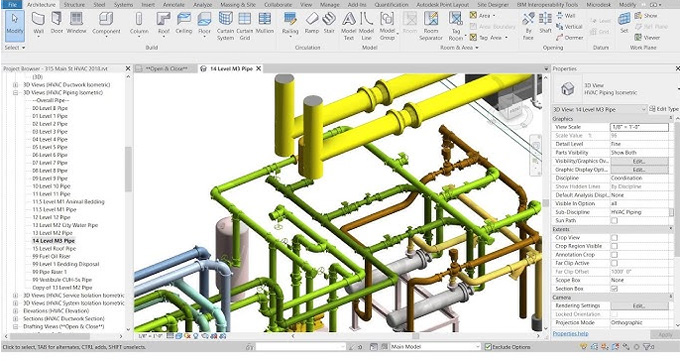
The Microdesk BIMrx has been developed to streamline the fabrication without sacrificing quality or consistency. This database solution helps to eliminate the mismatched connector errors, unorganised folder structure, inconsistent materials, incorrect bill of materials and time spent searching for parts.
Microdesk BIMrx also helps to assist the AECO industry, along with improving design efficiency and productivity. This feature of the Microdesk BIMrx enables the design and construction professionals to spend more time on innovations and building sustainable facilities.
Discuss the design features of the Microdesk BIMrx
➢ Microdesk BIMrx helps to facilitate the data exchange between Revit and Excel, which enables bulk editing of parameter data.
➢ The Microdesk BIMrx also has the sheet view manager feature, which helps to automate the creation and management of the views and sheets.
➢ The project setup tools of the Microdesk BIMrx have the Scope Box Manager tool, which helps to manage and copy scope boxes from linked models.
➢ The single-view modelling feature of the Microdesk BIMrx helps to model pipes, ducts, and conduits within a single 3D view, which helps to reduce the clicks required to connect elements.
➢ The automation tools of the Microdesk BIMrx help to create or modify connections in tight spaces.
Learn about the process of installing the Microdesk BIMrx
System requirements
To install the Microdesk BIMrx, specified systems are required, which are:
1. The installed versions of Revit 2019, Revit 2020, Revit 2021 and Revit 2022 should be required.
2. The .NET 4.7 framework from Microsoft is also required.
MSI Installer procedure
The BIMrx MSI installer helps to automatically upgrade any previous product version that has been installed on the machine. While installing with the BIMrx MSI installer package, the installation procedure will be straightforward. In this case, trial and standard licenses are available for the users, from which the user can see the user guide for more details. The BIMrx can be uninstalled by going to Windows Add or Remove Programs and selecting to remove Microdesk BIMrx.
Installer steps
➢ After launching the .msi, the Setup Wizard dialog has been opened, and the user has to click on the Next option to continue.
➢ In the next step, the user has to read the following the End-User License Agreement carefully. Again, the user has to click on the Next option to continue the process.
➢ In the next step, the custom setup will be viewed, which gives the user an option to decide for which versions of Revit they would like BIMrx installed. In this case, the user has to click the drop-down next to each version of Revit software to add or remove it from the installation process.
➢ After that, the user has to click the install button to begin the installation process. In the next step, the user has to click back to review or change any of their installation settings.
➢ The user has to click yes on a Windows dialog box that pops up. The user will get the following pop-up if there are any active sessions of Revit software, prompting them to close Revit software.
➢ After that, the user has to click on the Finish button to exit the Setup Wizard. Thus, the Microdesk BIMrx has been officially installed in the machine.
Activation steps
After completing the installation process of the Microdesk BIMrx in Revit software, it can be activated by following several steps, which are as follows:
To get online demonstration, watch the following video tutorial.
Video Source: Symetri USA
1. In the Revit software, the user has to go to the ribbon tab and has to navigate to the BIMrx tab >> BIMrx Core panel.
2. After that, the user has to click on the About/Licensing button.
3. This process helps to open the About Microdesk BIMrx dialog box.
4. In the next step, the user has to click on the Manage License button, which helps to show the BIMrx License Manager dialog.
5. In this BIMrx License Manager dialog box, the user can see their current license information and the license activation options if they need to activate a license for a specific BIMrx Product. The License Activation Options section helps to represent them with three options to activate a license.
6. From the above three options, the user has to select the best option to activate the Product and start using BIMrx.
After activating the BIMrx Product, the user will find which additional Products, if any additional Products exist, will be included with the activated BIMrx Products.

Gallery
Feel free to contact us for BIM requirements. One of our representative will respond you within 24 Hours. Send us your projects requirement today and grow your project.
Explore More !