Discuss the Role of AutoCAD in Creating 2D & 3D Elevations
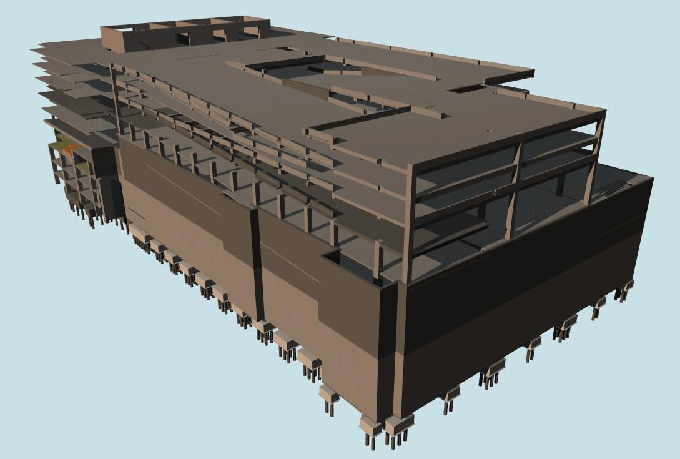
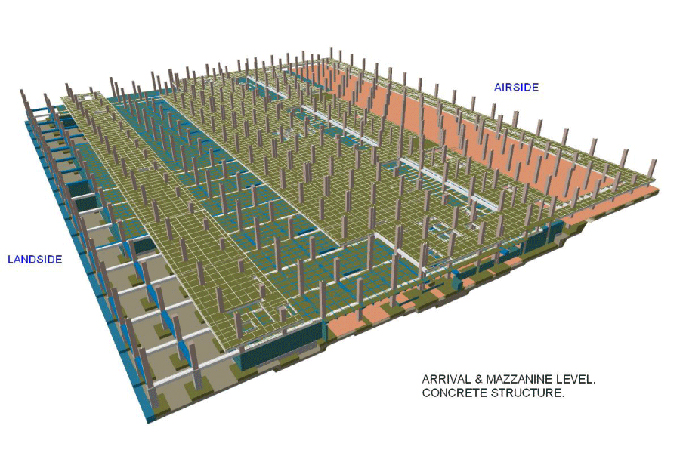
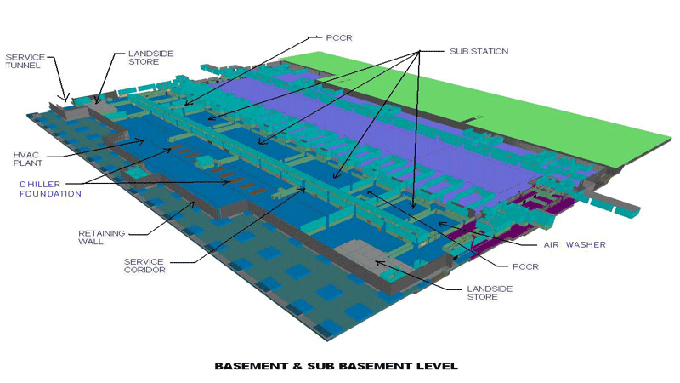
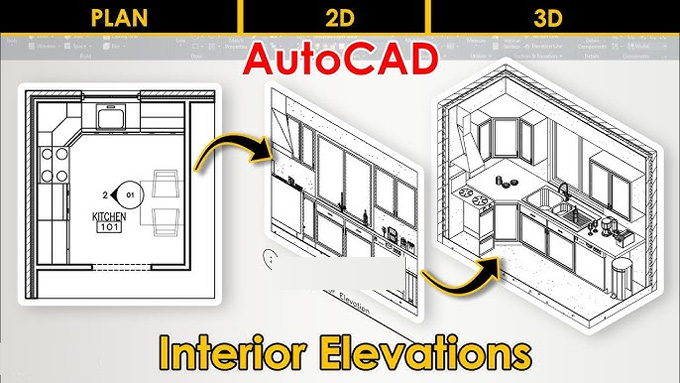
By using the AutoCAD software, the design professionals can create 2D and 3D elevations for the building design. The AutoCAD Revit software enables users to design a building along with its structure in 3D, and the user can also annotate the design model along with 2D drafting elements. AutoCAD can also access the building information from the database of the building model.
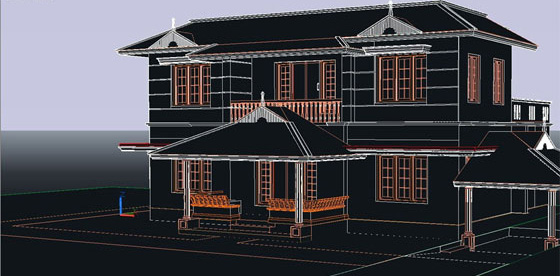
In addition, AutoCAD can also track the different stages of the building’s lifecycle, from the beginning of the construction process to the maintenance or demolition of the building structure.
Discuss the Elevation styles of the AutoCAD Software
1. AutoCAD software offers a 2D section/elevation style, which has been assigned to a 2D elevation. This elevation style helps to determine the appearance and characteristics of the design object.
2. Users can also manage the 2D elevation styles by accessing the style manager of the AutoCAD software, which helps to create, edit, copy or purge styles. The users are able to work with different elevation styles from multiple drawings and templates by using the design toolset of the AutoCAD software.
3. The 2D elevation styles of the AutoCAD software offer an easy way to assign the design materials to the 2D elevation objects. In addition, the users are also able to specify the section components for which display control is required by the design materials.
4. The display component feature of the AutoCAD software helps to determine the graphical characteristics of the design, for example, the colour, the linetype or others.
5. While creating subdivisions in the style, the design objects should be included in it that are visually distinct from the other subdivisions. In this context, the users are able to set the 2D elevation styles to use the hatch pattern from the design material and can use the colour and linetype from the subdivision display properties.
Process of creating a 2D and 3D elevation workflow by using AutoCAD
To create the 2D and 3D elevation workflow using the AutoCAD software, the user has to conduct several tasks, which are as follows:
1. At first, the user has to draw an elevation line. The elevation line helps to define the extent of the elevations, for example, the width of the elevation, the height of the elevation and the length of the elevation.
2. After drawing the elevation line, the user can create 2D or 3D elevations. In this context, the user has to select the elevation line and objects to be included and thus, can create an elevation.
3. After creating 2D or 3D elevation, the users are able to make changes to the elevation or the building design model. The users are able to edit the elevation line, the linework, and also edit the design objects to refine the visual appearance of the elevations.
4. With the help of the AutoCAD software, users are also allowed to update the elevation to apply changes that have been made by them. The users are also able to update all elevations within a project globally.
Discuss the display components and materials of the 2D and 3D elevations
A wide range of display components has been offered by the AutoCAD software, which has been determined by the materials. While the user assigns the design material to an object, the user can assign one material to each display component of the design object. In the case of creating a 2D or 3D elevation object from the building object, the material assignments of the source objects have been applied to the 2D or 3D elevation. It should be remembered that the user does not assign a material directly to a 2D or 3D elevation.
Live Section View of the AutoCAD software in making 2D and 3D elevations
The Live Section View of the AutoCAD software is a special view of a 3D section, in which the design objects have been sectioned, not going to be converted to a 3D section object, but have remained in the drawings as objects.
The user needs to assign a material to the sectioned objects to control the object part’s appearance outside of the section line. In addition, the Live Section View can also be used by the users to clip out just the region that they need momentarily and to focus on that specific area. This feature helps to accelerate the design performance and helps to make building design models easier.
To get online demonstration, watch the following video tutorial.
Video Source: TD Vision U
Creating material boundaries in the 2D elevations using the AutoCAD software
With the help of the AutoCAD software, users can create material boundaries in the 2D elevations, which enable them to erase or limit the portions of the 2D elevation. This feature also helps to highlight a specific region in the 2D elevation.
Gallery
Feel free to contact us for BIM requirements. One of our representative will respond you within 24 Hours. Send us your projects requirement today and grow your project.
Explore More !